
Fixing a 409 Error When Connecting Your Google Calendar
If you’re seeing a 409 error when trying to connect your Google Calendar, don’t worry — this is a common issue and usually quick to fix.

What does a 409 error mean?
A 409 error typically means that the calendar you’re trying to connect has already been added (or partially added) to your Booost account. This can cause a conflict when trying to reconnect it.
How to fix it
Follow these steps to reset the connection and get everything working smoothly:
Step 0: Disconnect any existing calendars
Start by clearing any existing connections:
- Go to Account Settings → Connected Calendars in Booost
- Disconnect any calendars currently connected
This ensures you’re starting fresh.
Step 1: Make your Google Calendar accessible
- Open Google Calendar
- Go to Settings for the calendar you want to connect
- Scroll to Access permissions for events
- Enable Make available to public
- Choose “See all event details” (recommended over free/busy only)
- Confirm the warning message
Don’t worry — Booost only uses this data to help manage your workload.

Step 2: Copy your calendar link
- In Calendar settings, scroll to Integrate calendar
- Copy either:
- Public address in iCal format, or
-
Secret address in iCal format (click the 👁️ icon to reveal it)
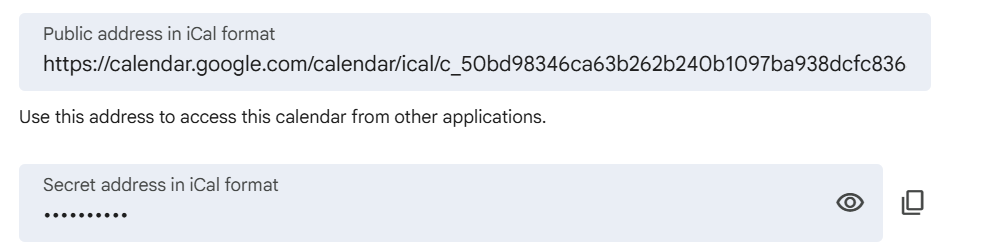
Public address in ical format
Step 3: Connect your calendar in Booost
- Go to Booost → Calendars → Add Event → Connect Calendar
- Paste your calendar link
-
Click Next to complete setup
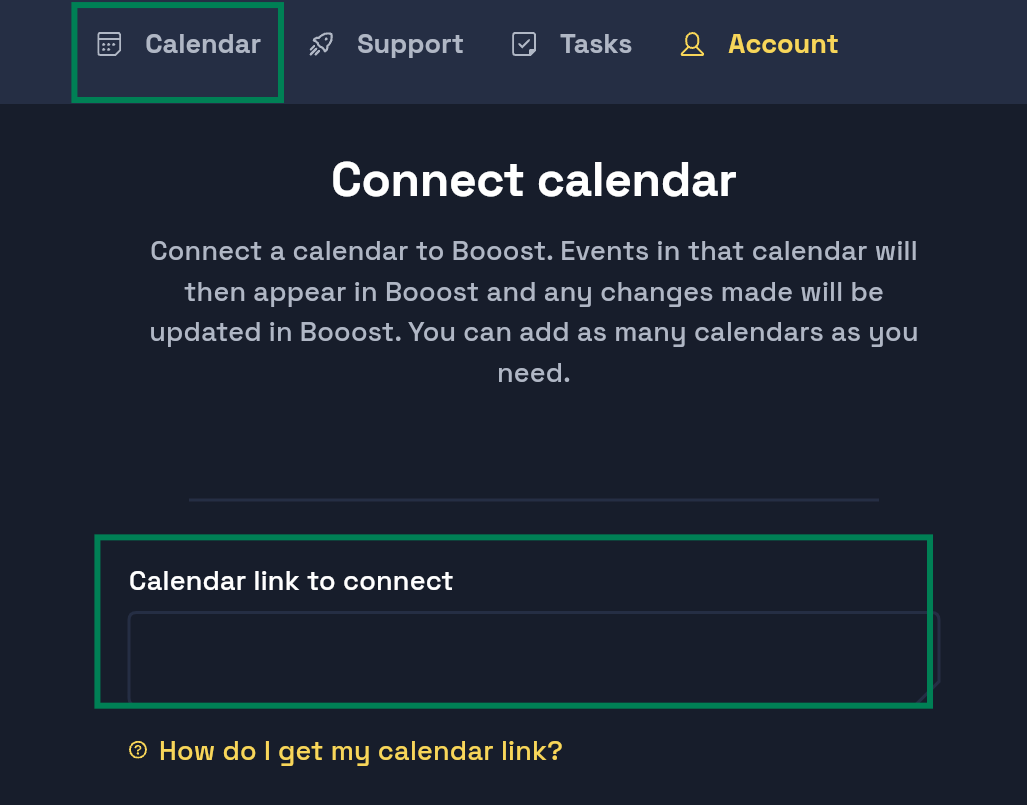
Connect calendar in Booost
Step 4: Refresh your account (important)
- Sign out of Booost
- Sign back in
This step ensures the connection fully updates.
Still having trouble?
If the error persists or something doesn’t look right, reach out to our support team — we’re here to help.