
Getting started with Reflect, Look back & Learner Resources
Booost has a few tools to support you day to day: 'Reflect' and 'Look back', found on your Home screen, and 'Learner resources', found in your Account.
- Reflect lets you note how your day went and what helped or got in the way. See 'Use Reflect' for how to do this.
- Look back lets you review your past Reflect entries, so you can spot patterns over time. See 'Use Look back' for how to do this.
- Learner resources are guides, videos, and toolkits written by specialists to help you build new skills. See 'Use learner resources' for how to find and use them.

Learner resources
‘Learner Resources’ are a range of guides, videos, and toolkits written by specialists to help you build new skills and strategies and get advice when you need it.
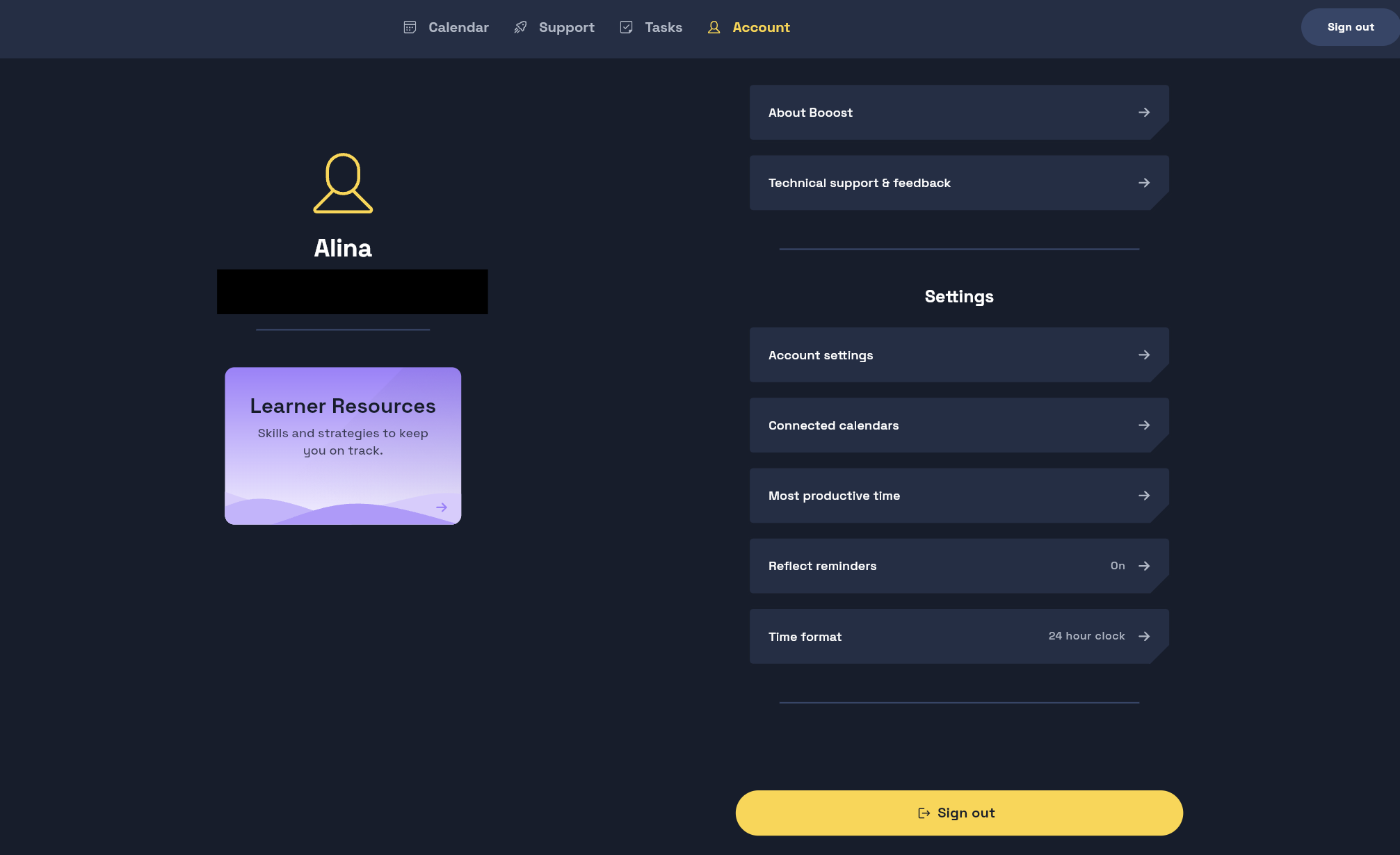
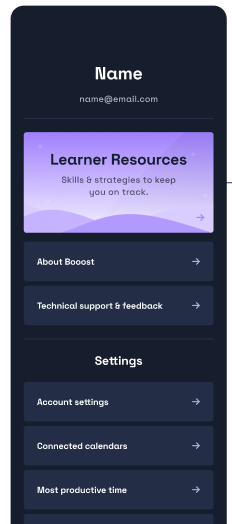
You can access ‘Learner Resources’ through the purple ‘Learner Resources’ button on the ‘Account’ page in both the Booost app and web version.
Web version:
App version:
Learner Resources
Each guide has the option to listen aloud and a summary, with the content broken down into subheadings or steps. You can filter the content by using the search bar, looking at content tagged ‘Quick read’ or ‘Video’, or by category or topic.

Getting started
In 'Getting started', you'll find strategies to help you begin work and beat procrastination, including:
- Getting started when your brain won't cooperate
- Managing and overcoming procrastination
- Breaking down big projects like essays and dissertations
- Understanding what's expected of you
Planning & prioritising
In 'Planning & prioritising', you can find support with organising your time and workload, including:
- Time management techniques like Timeblocking and the Eisenhower Matrix
- Making a revision timetable
- Prioritising your reading
- Preparing for exams
Attention & focus
In 'Attention & focus', you can find strategies to help you concentrate and work effectively, including:
- Focus techniques like Pomodoro and Timeboxing
- Improving your concentration
- Staying on track with research and reading
- Note-taking, proofreading and referencing
Self-monitoring & regulating
In 'Self-monitoring & regulating', you can access wellbeing-focused support and strategies, including:
- Grounding and breathing techniques
- Managing anxiety around assessments, attendance and presentations
- Energy accounting and managing sensory overload
- Communication in social and group situations
Adjustments & insights
In 'Adjustments & insights', you can find real student stories alongside practical information on support, including:
- Reasonable adjustments and exam arrangements for ADHD, autism and SpLDs
- Studying with AI effectively and ethically
- Insights and experiences from other neurodivergent learners
Top Apps for Neurodivergent Learners
In 'Top Apps for Neurodivergent Learners', you'll find our favourite free apps and tools, grouped by what they help with:
- Focus & attention
- Planning & organisation
- Learning & memory
- Task initiation & motivation
Reflect
There are lots of ways to use Reflect on your day:
- Track how you're feeling day to day
- Track reflections for a group project or placement
- Track new study strategies and whether they're working for you
To Reflect on your day
You can access Reflect:
Step 1: From the Home screen — on mobile, tap the house icon in the bottom navigation bar, or on browser/desktop click the rocket icon in the top left corner
Step 2: Tap Reflect on your day
Then:
- Choose how your day went — Good progress, Some progress, or Got stuck
- Add what helped you today (optional)
- Add what got in the way (optional)
- Tap Continue — or Skip if you'd prefer not to add notes
-
Once complete, you can choose Look ahead to see upcoming events
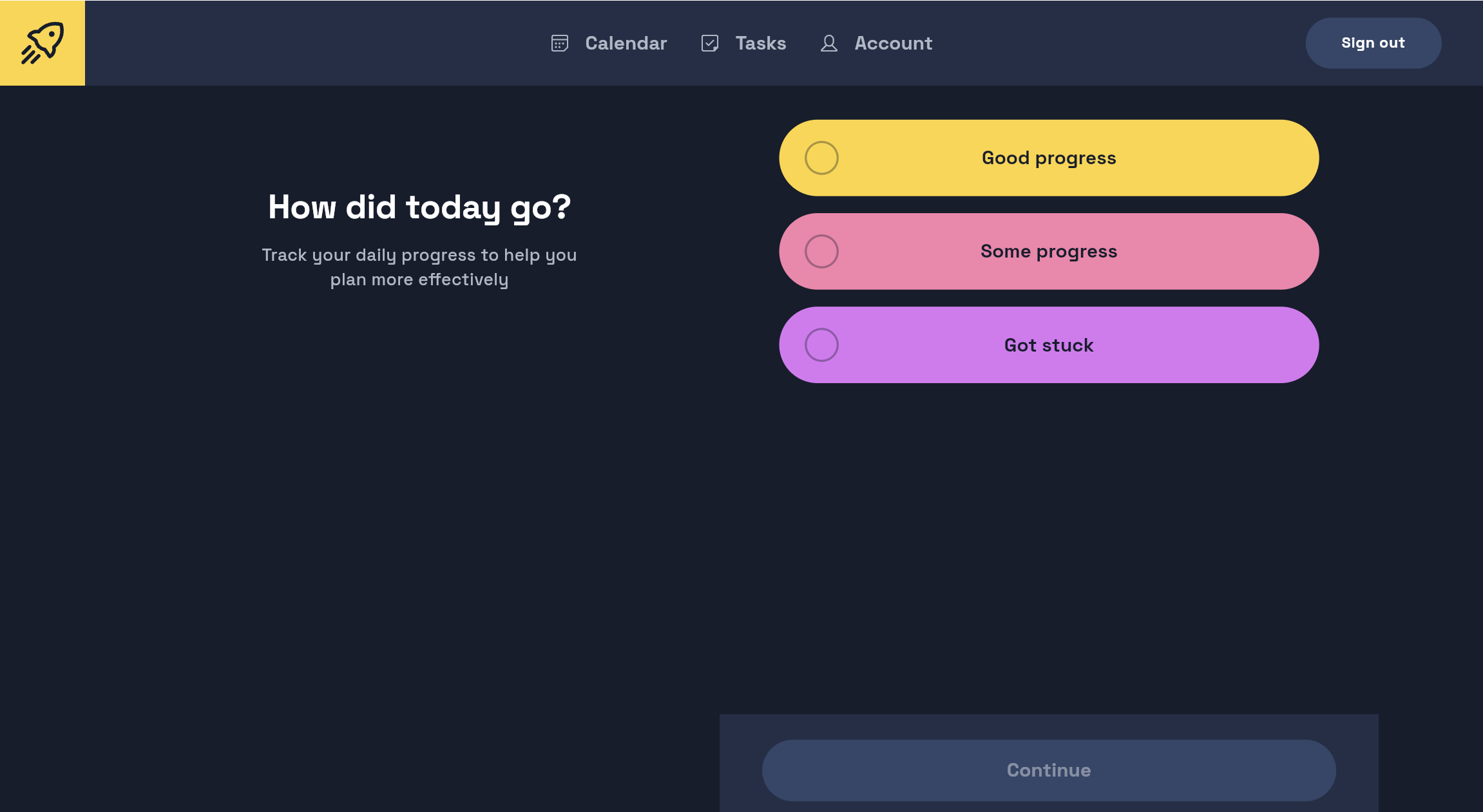
reflect on your day web view
Using ‘Look back’
To use Look back, you'll need to have completed at least one Reflect entry.
Look back lets you review your past Reflect entries — how your day went, your notes, and your completed tasks — so you can spot patterns and track what's helping over time.
To Look back
You can access Look back:
- Step 1: From the Home screen — on mobile, tap the house icon in the bottom navigation bar, or on browser/desktop click the rocket icon in the top left corner
-
Step 2: Tap Look back
Each entry shows:
- How your day went
- Your notes — what helped and what got in the way
- Your completed tasks for that day
-
Tap any entry to view or edit your notes, or to delete the entry.
Click Load more at the bottom of the page to view entries older than seven days.
