
Fixing a 422 Error When Connecting Your Google Calendar
If you’re seeing a 422 error when trying to connect your Google Calendar, don’t worry — this is a common issue and usually straightforward to fix.

What does a 422 error mean?
A 422 error typically means that your Google Calendar isn’t set to public yet, so Booost can’t access it.
How to fix it
Follow these steps to get everything set up correctly:
Step 0: Disconnect any existing calendars
Start by clearing any existing connections:
- Go to Account Settings → Connected Calendars in Booost
- Disconnect any calendars currently connected
This ensures a clean setup.
Step 1: Make your Google Calendar accessible
- Open Google Calendar
- Go to Settings for the calendar you want to connect
- Scroll to Access permissions for events
- Enable Make available to public
- Choose “See all event details” (recommended over free/busy only)
- Confirm the warning message
Don’t worry — Booost only uses this data to help manage your workload.

Step 2: Copy your calendar link
- In Calendar settings, scroll to Integrate calendar
- Copy either:
- Public address in iCal format, or
- Secret address in iCal format (click the 👁️ icon to reveal it)
-
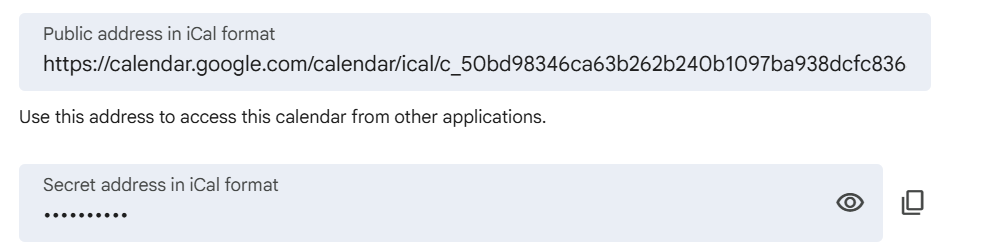
Public address in ical format
Step 3: Connect your calendar in Booost
- Go to Booost → Calendars → Add Event → Connect Calendar
- Paste your calendar link
-
Click Next to complete setup
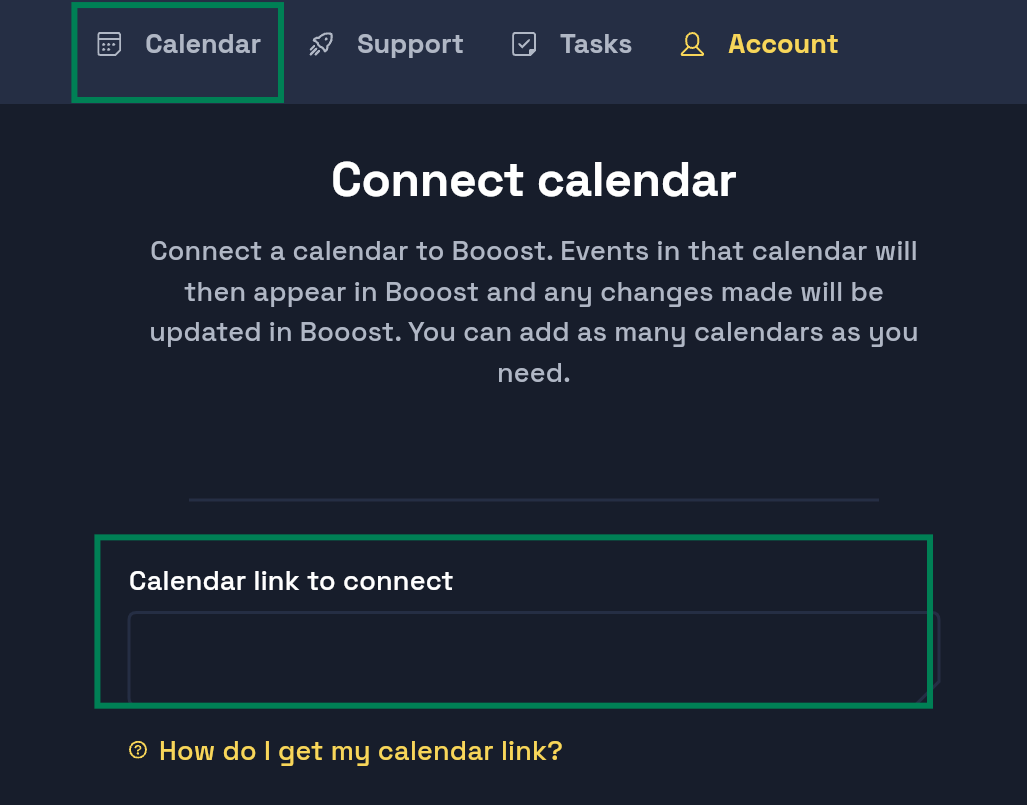
Connect calendar in Booost
Step 4: Refresh your account (important)
- Sign out of Booost
- Sign back in
This ensures the connection updates properly.
Still having trouble?
If you’re still seeing the error or something doesn’t look right, feel free to reach out to our support team — we’re here to help.